The Neconyan handbook
Your guides Miso, Taro & Nori
Choose each guide's gender to change their artwork and pronouns. Your choices stay in this browser, separately from the app.
Find your way around
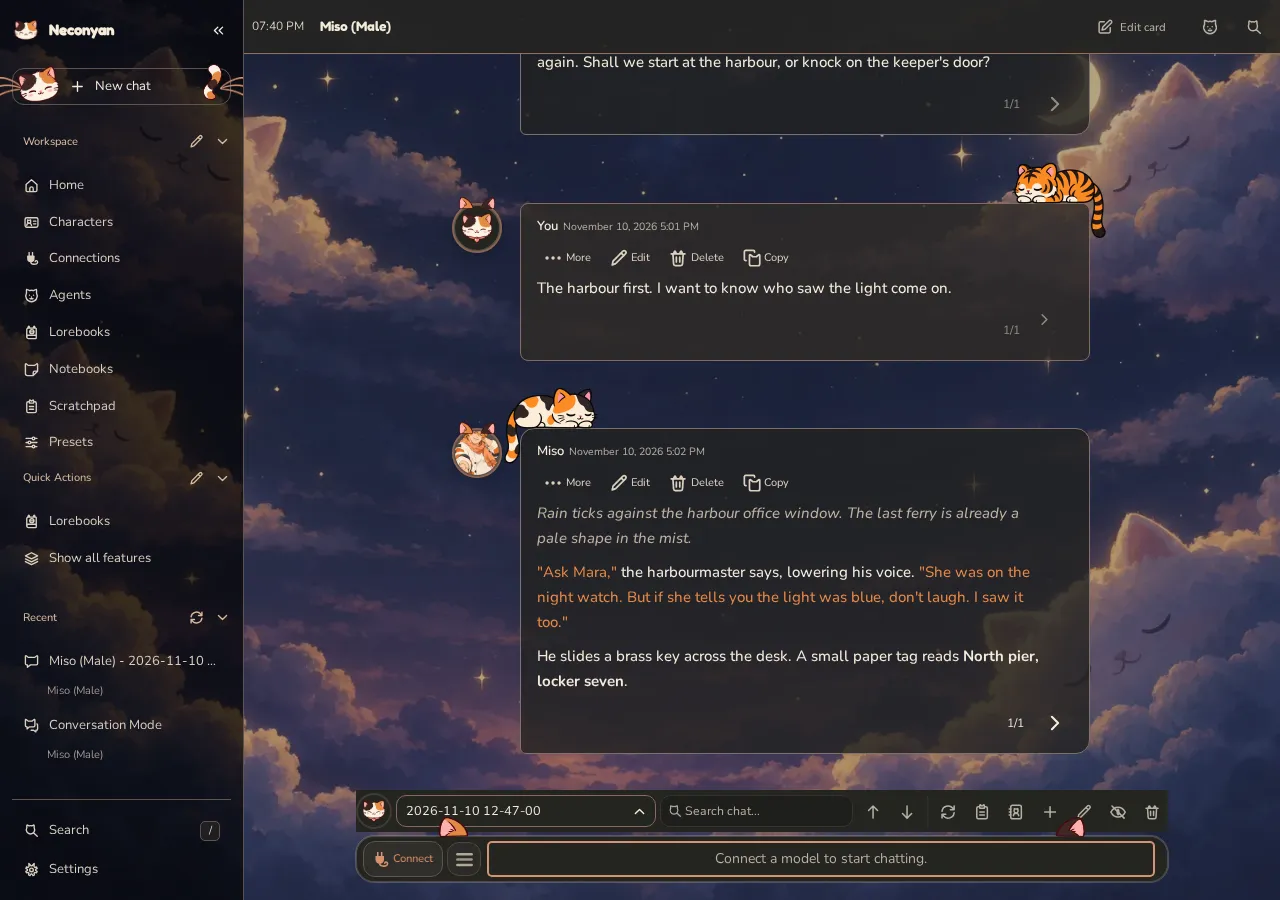
Home is the starting point for your characters, recent work and connection setup. On a computer, the workspace sidebar stays beside the main area. Use Collapse sidebar at its top to turn it into an icon rail; the arrow expands it again. The collapsed rail keeps a clear gap between its groups and centres its icons. On a phone, open the workspace navigation when you need another page, then return to the chat.
Choose a mode
| Mode | What you work with | Good for |
|---|---|---|
| Roleplay | A character-chat transcript with message actions and swipes | Scenes, narration and long-form roleplay |
| Conversation | Direct messages and group conversations, with their own histories | Casual messages, ongoing friendships and a messaging-app feel |
| Meower | A private character timeline with posts and reactions | Seeing your cast interact in a social feed |
| Story Mode | A continuous manuscript view of a chat | Reading and writing without ordinary message bubbles |
Conversation keeps its own histories, so switching there opens a separate conversation. Story Mode changes how the current chat is displayed.
Where things live
Characters holds the cast, and Characters & Lore holds Persona, Character Expressions, Quick Image Gen, BotSearcher, Pawthfinder, World Info Lab, Lorebook Distiller and Card & Lorebook Time Machine. Connections selects the model service. Lorebooks adds relevant world information to requests.
Notebooks stores your own writing and files. Scratchpad gives you a side discussion with an assistant. Agents adds configured helpers around replies, Mewmory handles source-backed recall for saved Roleplay histories, and Chat Archive searches and organises saved chats.
The Fine-tuning area contains model presets, sampling, formatting, regex scripts and prompt tools such as Preset Tools, Chat Completion Tabs, Prompt Tags, Macro Enhanced, Prompting Lab and Deep Swipe. A regex is a text-matching rule used to find or replace patterns. You can leave these controls alone while you learn the main chat.
Appearance holds Background, Dialogue Colors, Termeownal UI, CSS Snippets and Regex Agent Themes, and Troubleshooting holds Server, Console Logs, Debugger and Report an Issue. Settings includes appearance, device behaviour, account controls and import tools. Extensions → Built-in opens each bundled tool's settings, and Extensions → Manage extensions manages whether extensions are enabled. A switched-off sidebar tool shows Off and opens Manage extensions to turn it on.
Settings
Settings sorts its drawers into four tabs. On a phone, a Settings category list replaces the tabs.
| Tab | What it holds |
|---|---|
| Appearance | Themes and colours, avatar and chat styles, layout, theme toggles, Custom CSS, Google Font and Moving UI |
| Chat & Writing | Chat & messages, Characters, Auto-swipe & auto-continue, Autocomplete and Fine-tuning |
| System & Device | Import & Restore, Desktop and Mobile behaviour, phone streaming options, and anything an extension adds without choosing a tab |
| Cache & Account | Account Settings, Cache & Storage Utilities, and Old defaults & recovery for untouched files left by older installs |
Find a setting searches every tab at once, so you don't need to know where something lives. The top of the panel holds the Language list, the version number and the Account button. Admin Panel appears there too when the server uses user accounts and you're an administrator.
Edit and reorder the sidebar
Every section heading in the workspace sidebar (Workspace, Fine-tuning, Characters & Lore, Appearance, Troubleshooting and Modes) has an Edit sidebar pen button on desktop and in the phone drawer, and Settings has the same switch. Drag a button by its grip to move it within a section or into another open section; the chat mode buttons stay in their own section.
Press X on a button to hide it from the sidebar. While you're editing, it stays faded in place with a + button to add it back, then disappears once you press Done. Hiding a button only takes it off the sidebar; its page and saved data stay intact. With a button focused, Alt+ArrowUp and Alt+ArrowDown move it and Delete hides or adds it back. A live message names each change.
Restore defaults brings back every hidden button and restores the default order for every section. Done leaves editing and returns focus to the pen you started from; each change is already saved. The order and hidden buttons are saved with this account's settings on the server, not in this browser or a character card, so they follow the account across devices. The phone drawer uses the same rail, order and edit controls.
Pin pages to Quick Actions
The Quick Actions group in the workspace sidebar holds shortcuts you choose yourself. Open Settings → System & Device → Desktop → Desktop Quick Actions, or use Mobile on a phone, then type at least two characters of a page, setting or tool name in the search box and choose the result to add it. Remove takes a shortcut out, Reset to defaults brings back the starting list, and each list holds up to 12 shortcuts.
The list offers the pages that the main search finds, including Catelier, Notebooks, Scratchpad, the chat modes and the Handbook, as well as settings and bundled tools. The pen beside the Quick Actions heading, labelled Edit Quick Actions, opens the same settings.
The desktop and phone lists are separate, and they are saved in this browser rather than with your account. A shortcut only opens the page it names; it doesn't change anything on that page.
Keep the sidebar simple
Simple Mode is opt-in. Existing accounts keep their current layout. On a new account, Nori asks Want to keep things simple? before the First paws tour. Yes, keep it simple turns on Simple Mode and shortens the tour; No, show me everything keeps the full sidebar. You can also use Settings → Appearance → Simple Mode later.
Simple Mode keeps Home, Characters, Connections, Agents, Lorebooks, Notebooks, Scratchpad, Presets, Search, Settings and the composer. It hides Mewmory, Chat Archive, Extensions, the other Fine-tuning pages, the mode switcher, the reasoning-effort button, the wand and image buttons beside the composer, Guided Generations and the rarer items in Chat tools.
The Characters & Lore, Appearance and Troubleshooting sidebar groups are hidden too, including Persona, Character Expressions and Quick Image Gen. Quick Actions stays in the sidebar, and its pen still opens the list so you can keep it to the shortcuts you use. The top-bar Extensions, Server and Console Logs tabs, Recent's Chat Archive button, and Mass delete and Auto-name controls also step out of view. Nothing is deleted or turned off. Extensions you installed, active lore and running Agents are not removed or disabled.
Press Show all features in the workspace sidebar to restore everything. The same switch in Settings turns Simple Mode on again, and the choice is saved for your account.
Search everything
Use Search at the bottom of the workspace sidebar, press / while you're not typing, or choose Find a setting on Home. Search finds pages, tools, modes and settings alongside saved content in your current account. Small spelling mistakes and missing accents can still match; exact matches rank higher.
Saved results include character definitions, persona descriptions, Roleplay messages and swipes, Conversation messages, notebook notes and lorebook entries. Try a distinctive phrase from the thing you remember. Use More saved results to see further matches.
Selecting a result opens its page, item or chat. A chat result opens the chat rather than promising a jump to the matching message. If its original character is missing, use the offered Find in Chat Archive action.
Search doesn't make a model request or give an assistant permission to read your notes. It searches saved content, not unsaved drafts or other accounts. Settings results depend on which controls and extensions are currently loaded. If some saved content couldn't be searched, treat that warning as an incomplete result, not proof that the item is missing.
Tours and everyday navigation
Home offers Replay First paws tour. Several full-page tools also have a character-led Tour. Follow the highlighted controls yourself; the tour explains the next action while you keep control of the page.
Look beside a page's heading for Tour, with its expandable description below. Dismissing a tour invitation leaves the description and Tour button available. Settings → Appearance → Page tours lets you restore invitations or separately hide all tour buttons.
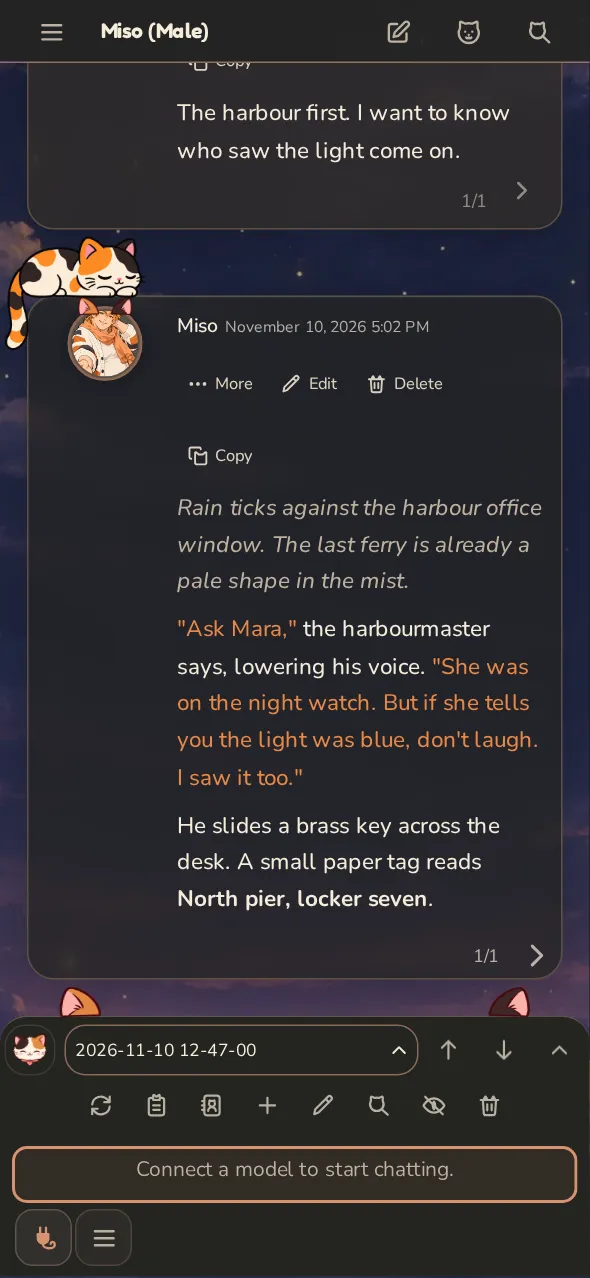
On a phone, a sheet or panel may take the full screen. Use its Back or close control to return to the chat. Opening every panel at once is rarely helpful on a small display.
Nori
Start with the scene you want to write. I'll help with the complications when you ask. I have suggestions.
Next: Roleplay, or choose a helper for a specific writing task.